
Creating events on your Facebook business page boosts engagement, drives attendance, and enhances visibility for promotions or gatherings. This SEO-friendly guide walks through the process using the latest Facebook interface as of 2026, covering desktop and mobile steps.
Createting an Event on Facebook Business Page
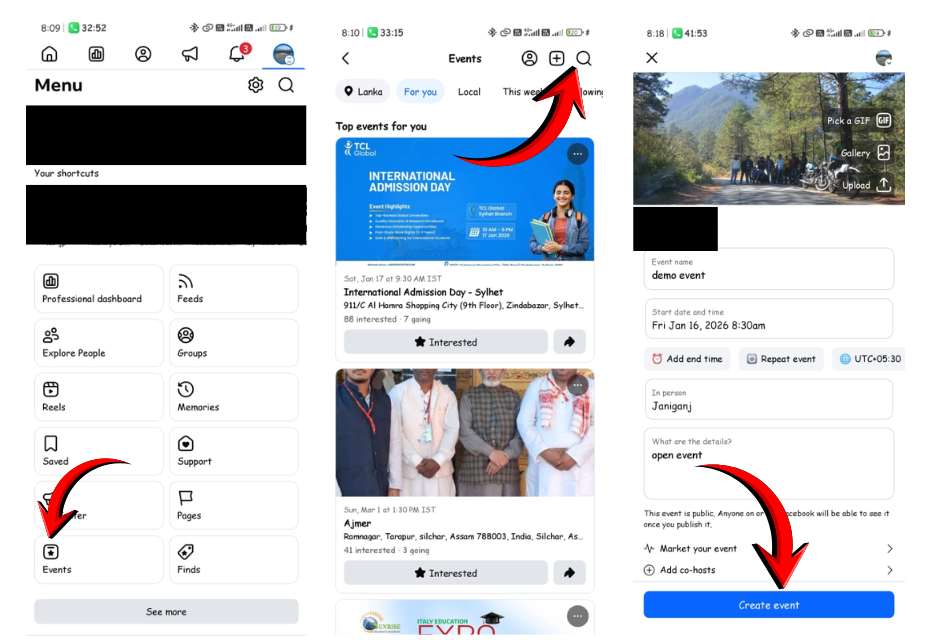
Access Events Section on Mobile & Desktop
Navigate to your Facebook business page and ensure you’re posting as the page admin. Click the “Events” tab located under the page name or in the left sidebar on desktop.
On mobile app, tap your profile picture, select the business page, then find “Events” in the tabs below the cover photo. This opens the “Upcoming Events” view.
Start New Event
Click or tap the blue “Create New Event” button in the upper right. Choose “In Person” for physical locations or “Online” for virtual events like Facebook Live.
Enter Basic Details
Fill in the event name with SEO keywords like “Jorhat Business Networking Meetup 2026”. Set start date, time, end time if applicable, time zone, and select a category such as “Workshop” or “Seminar”.
Add a compelling description highlighting benefits, agenda, and calls-to-action. Preview the event page on the right side for desktop/mobile views, then click “Next”.
Set Location and Details
For in-person events, search and select the venue or enter a custom address. Online events offer options like “Facebook Live”, “External Link”, or “Messenger Rooms”.
Upload a high-quality cover photo (recommended 1200×628 pixels) and add co-hosts via “Event Settings”. Enable guest list visibility or posting restrictions as needed.
Publish and Promote
Click “Create” to launch the event publicly. Invite followers, friends, or targeted audiences directly from the event page, and share via posts or ads for maximum reach.
Monitor RSVPs, respond to questions, and use recurring options for series events to build ongoing engagement.